User story mapping is a planning technique that lays out a product backlog along the user’s journey, from the first step to the last. It gives the whole team a shared picture of what to build and in what order.
This guide shows you how to build one in Qlerify in six steps.
A user story map shows the steps a user takes through your product, with the user stories for each step listed underneath. Teams often build one with sticky notes on a wall. In Qlerify you can generate a first draft with AI and refine it together online.
A flat backlog hides the big picture. A story map keeps it in view, which gives you:
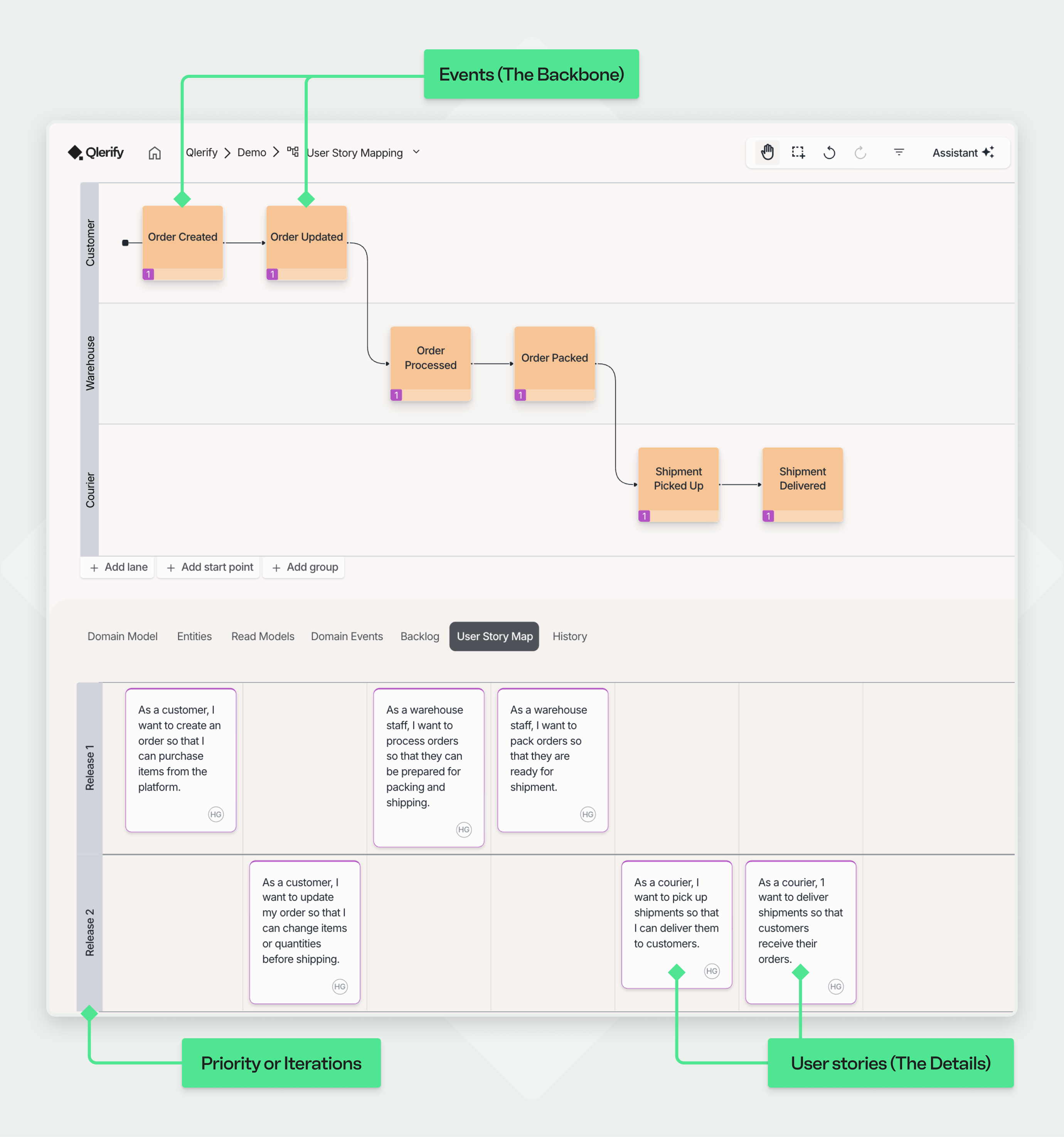
A user story map has three parts:
Laid out this way, the map also works as a roadmap that’s easy to adjust when priorities change.
Before you start, log in to Qlerify or start your free 14-day trial, then create a project.
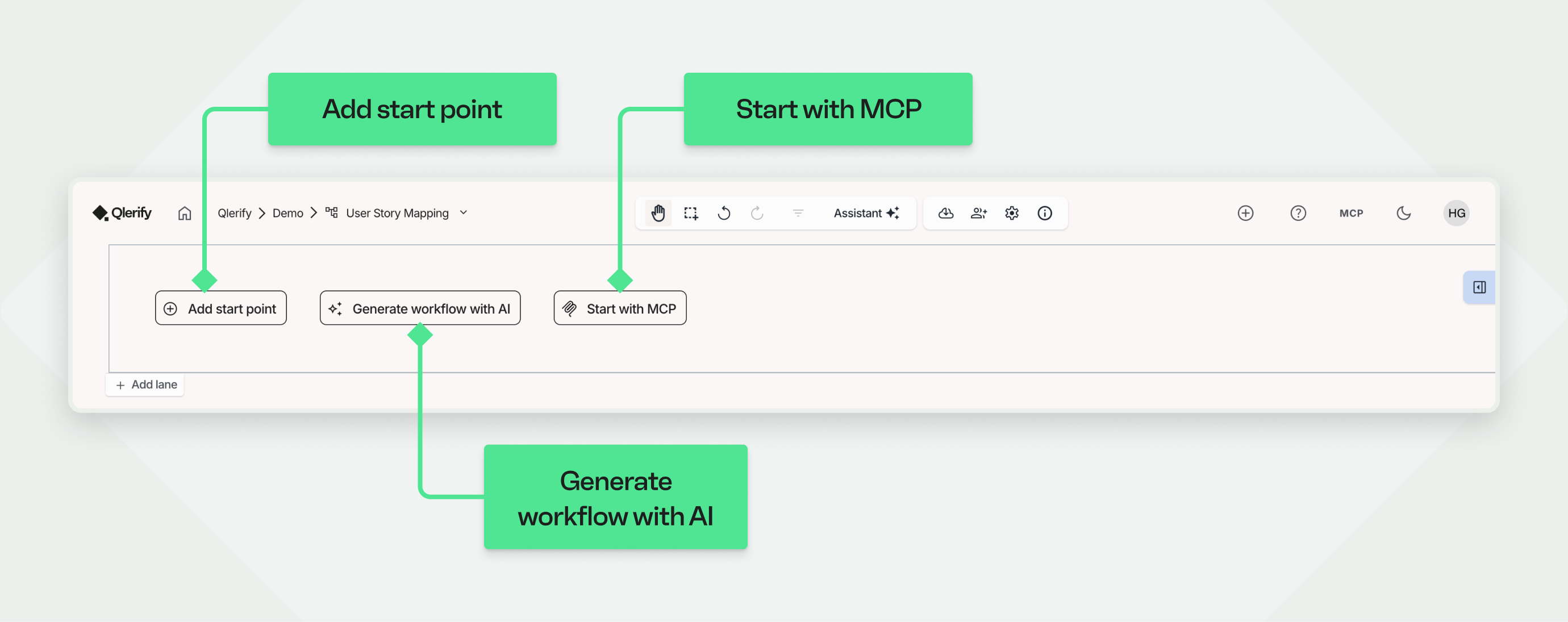
In your project, create an empty workflow and open it. The blank canvas gives you three ways to start: Add start point to build by hand, Generate workflow with AI, or Start with MCP to build it from an AI assistant connected to Qlerify, such as Claude, ChatGPT or Cursor. You can also invite teammates from here.
For a guide to this view, click the question mark icon in the top right.
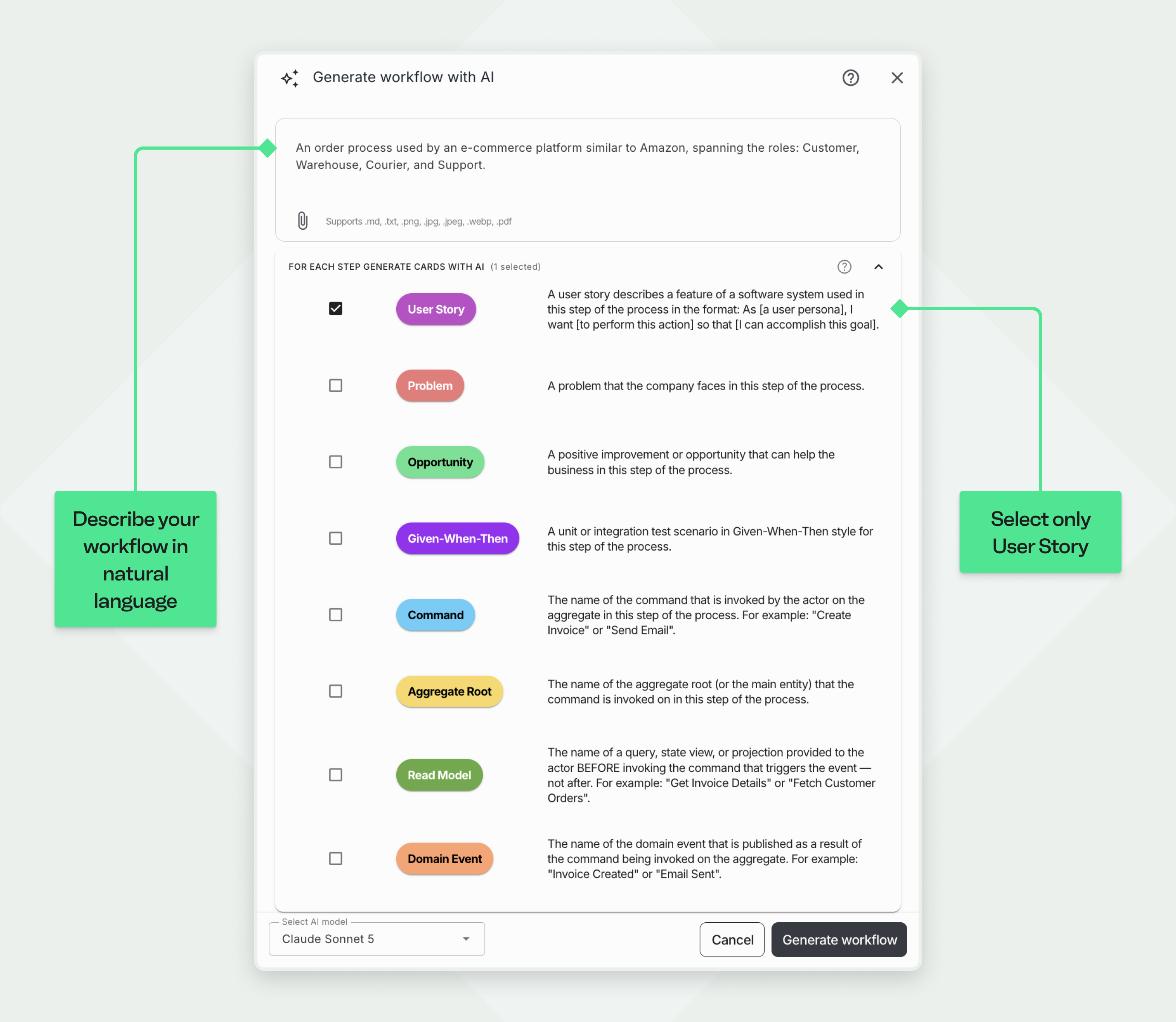
Click Generate workflow with AI and describe your workflow in plain language in the text field at the top of the dialog.
Use your own description or try this one:
"An order process used by an e-commerce platform similar to Amazon, spanning the roles: Customer, Warehouse, Courier, and Support."
Clear the checkboxes that are selected by default, select only User Story, then click Generate workflow.
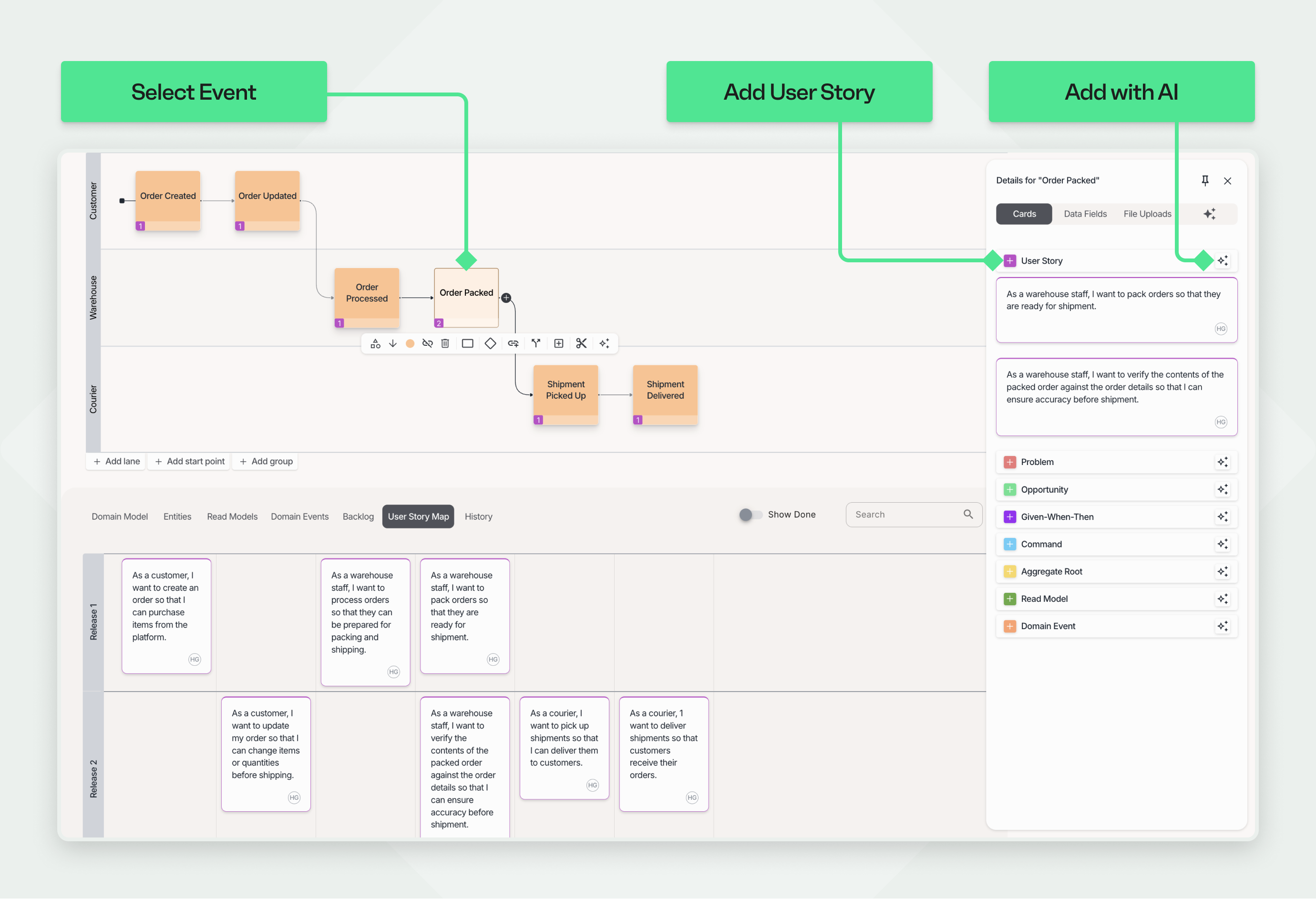
When the workflow is ready, open the User Story Map tab below the diagram. You’ll see a map like the example earlier on this page, though the exact result varies.
Tip: You can also build the map by hand with Add start point. This guide uses AI so you have a full map to work with right away.
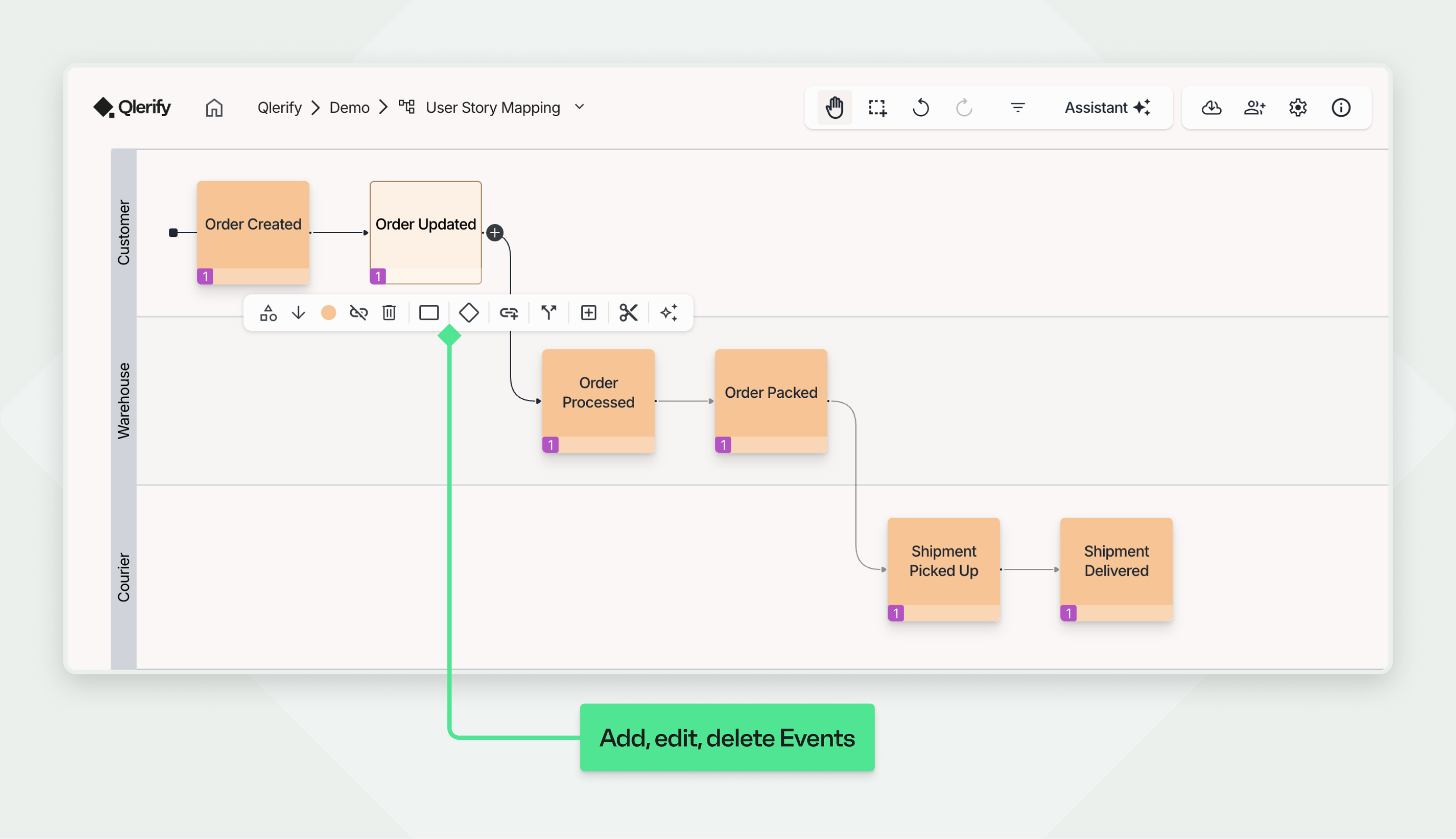
Start by reviewing the events along the top of the map. They’re the high-level steps of the user’s journey.
Drag events to put them in the right order. You can also:
Get the events right before you move on. Every story in the map sits under one of them.
Click an event to see its user stories in the sidebar, and work through them one at a time.
Make sure each user story:
You can:
Some events need several stories, others just one.
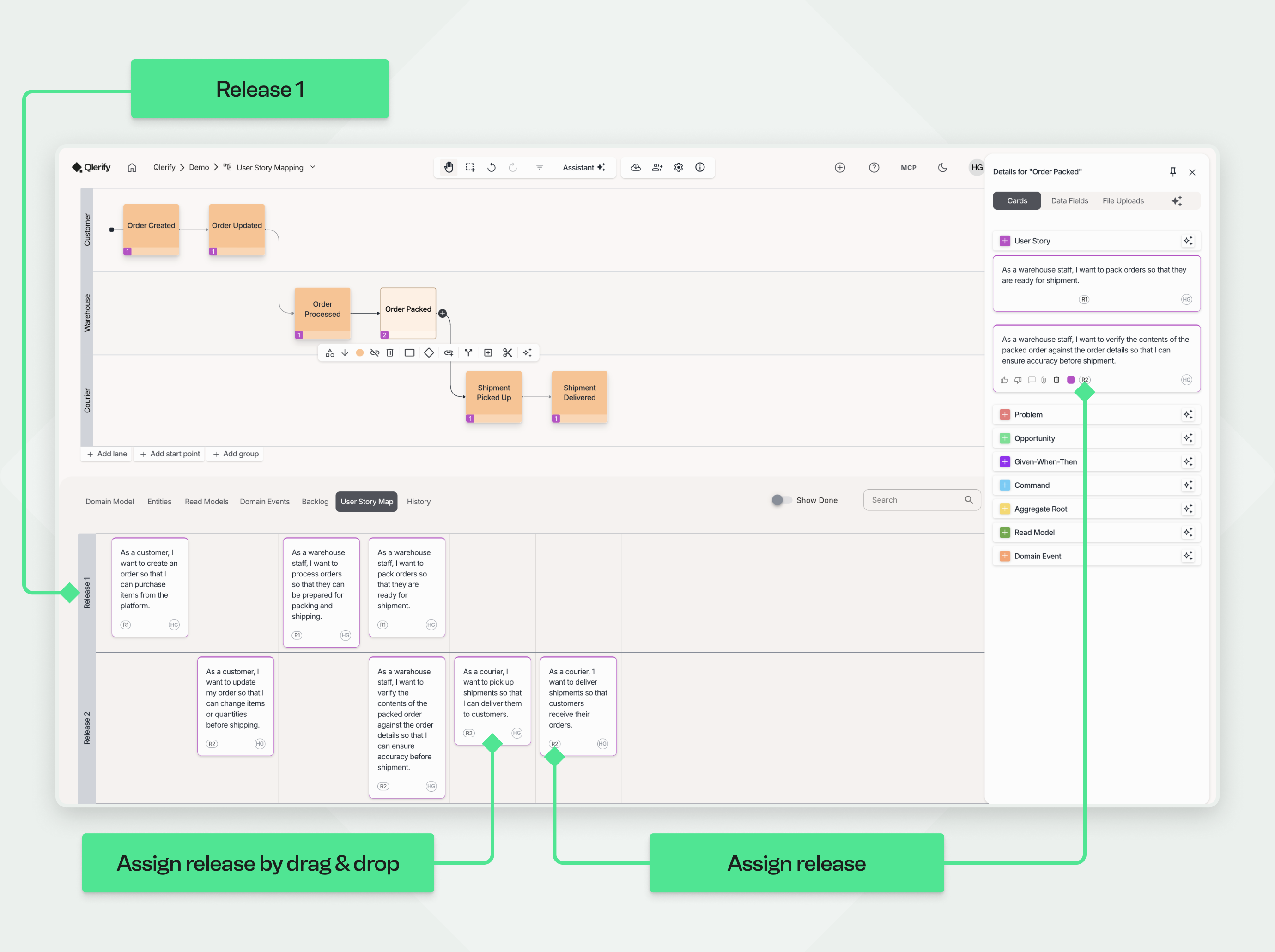
Now prioritize. Give each story a release number, either in the sidebar or by dragging it into a release row.
Release 1, the top row, is your minimum viable product (MVP): the smallest set of stories that still gives the user a complete journey from start to finish.
Put everything else in later releases, for example:
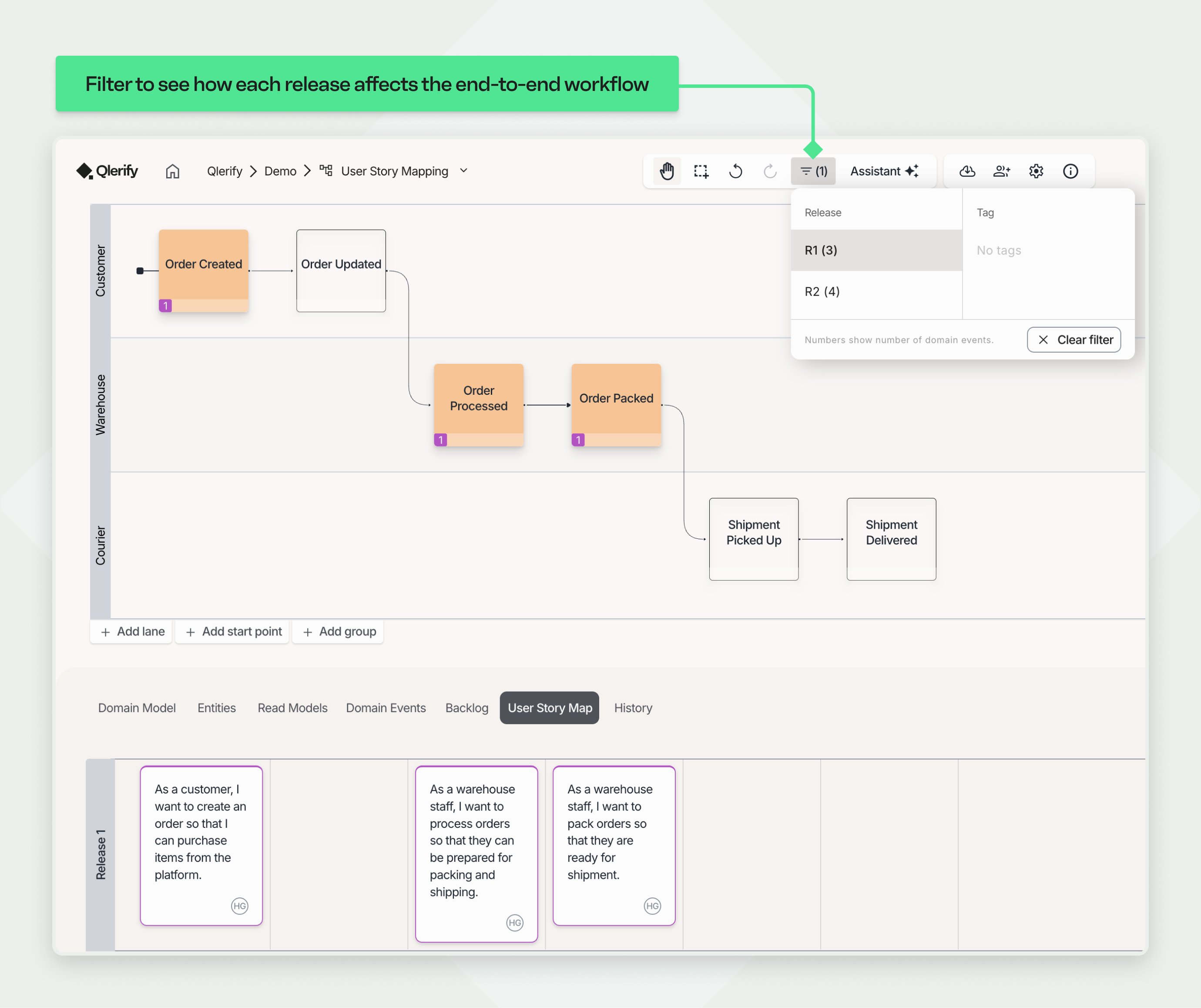
Use the release filter above the diagram to view one release at a time, and check that each one works as a complete journey on its own.
For each release, ask:
Fill any gaps you find and adjust the map until every answer is yes.
When Release 1 looks complete, send its user stories straight to your backlog in Jira or Azure DevOps.

With Qlerify you can generate a user story map in minutes, or build one by hand with your team. Our user story mapping tool helps you:
Start your free 14-day trial and build your first user story map.


