
Whiteboards get messy and are hard to use with remote teams. Qlerify is an online Event Storming tool that adds structure to your sessions and uses AI to speed up the design process.
To get started, log in to Qlerify or sign up for free, create a project, and follow the steps below. This guide walks you through a Software Design-level Event Storming session in Qlerify.
For a deeper introduction to the method, read Event Storming - The Complete Guide.
Create a new, empty workflow and open it. You will see a blank workspace similar to the image below. From here you can click Add start point, Generate workflow with AI or Start with MCP, or open the workflow settings.
For more details about this view, click the question mark icon.
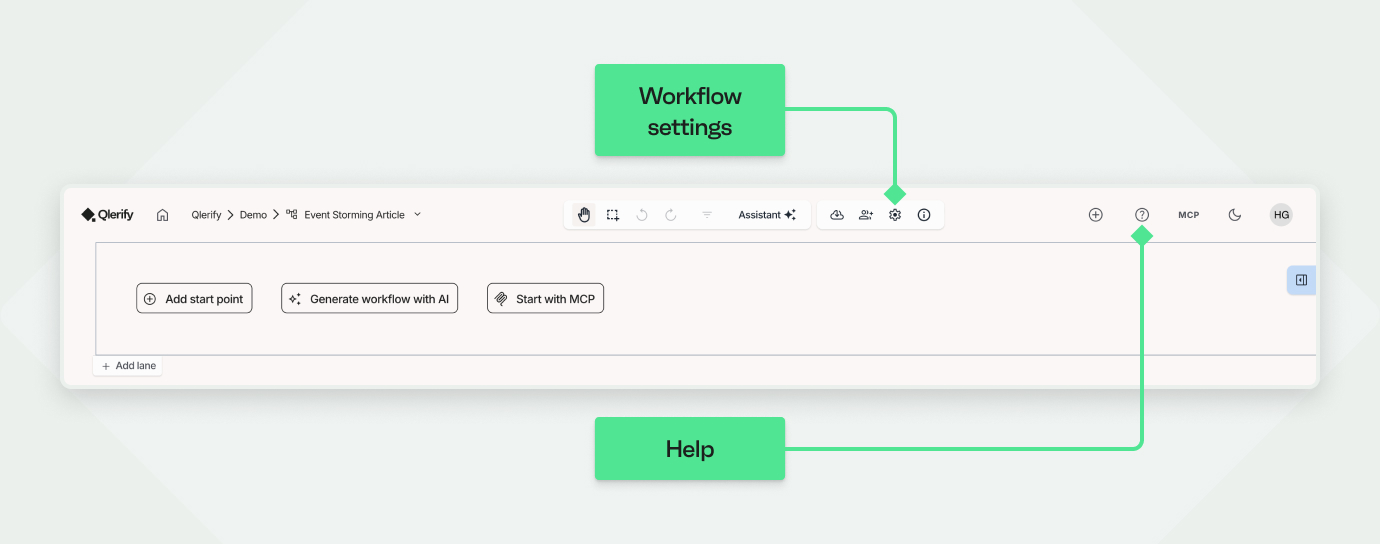
Open the workflow settings by clicking the cogwheel above the diagram, then select the Cards tab.
Each new workflow comes with a default set of card types that you can use for Big Picture, Process Modeling, and Software Design-level Event Storming. You can add, update, and remove card types as needed. The default set includes:
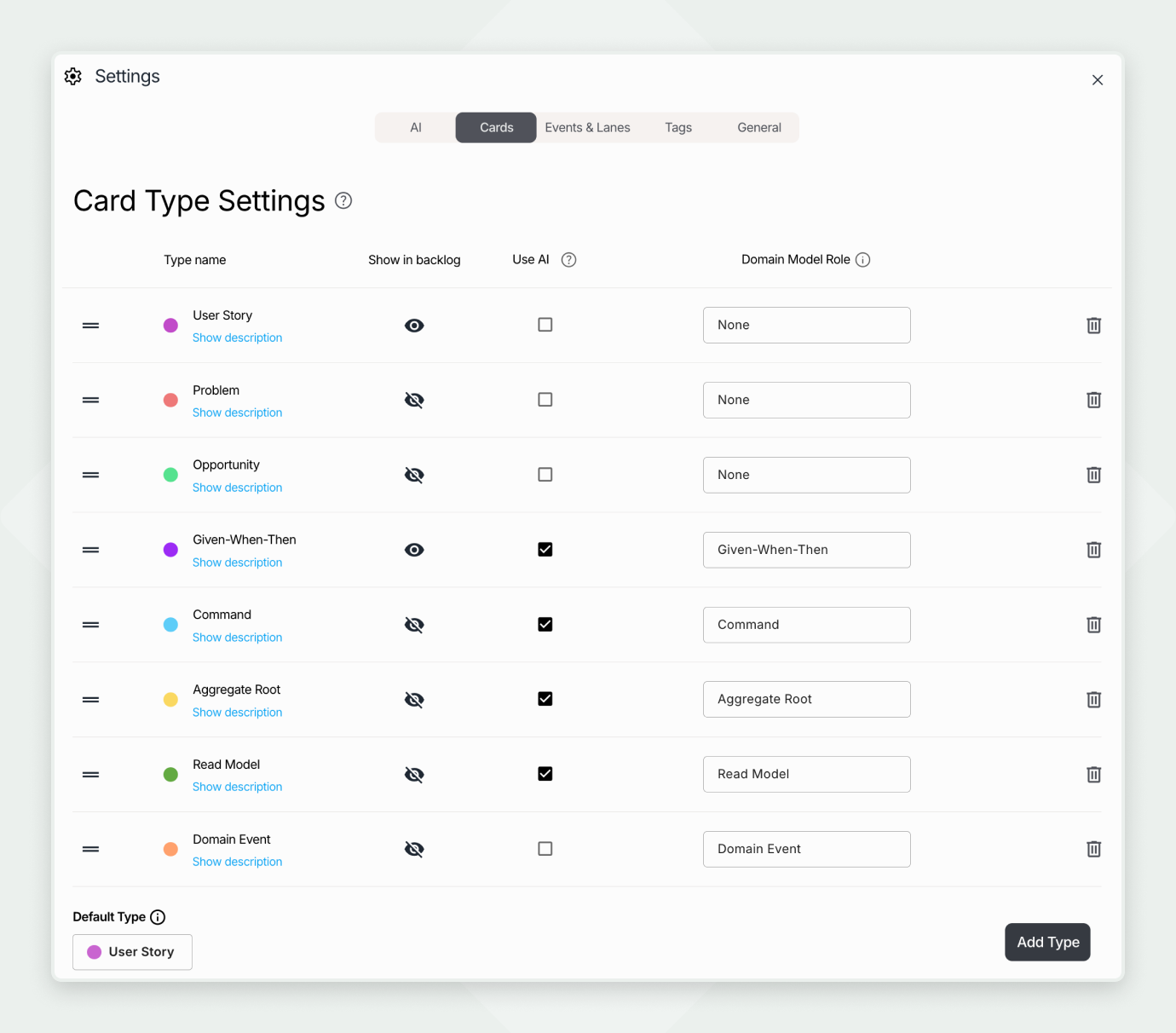
The Given-When-Then (GWT) and User Story card types are not part of standard Event Storming. You can use GWTs to extend a Software Design session, but this example leaves both out.
So update the Card Type Settings as follows:
Note: Qlerify uses card types with the Domain Model Role Command, Read Model, or Aggregate Root to group commands and events around aggregates at the end of the Software Design session.
Note: If you find the term Aggregate confusing, rename it to something like "Entity" or "Information Object".
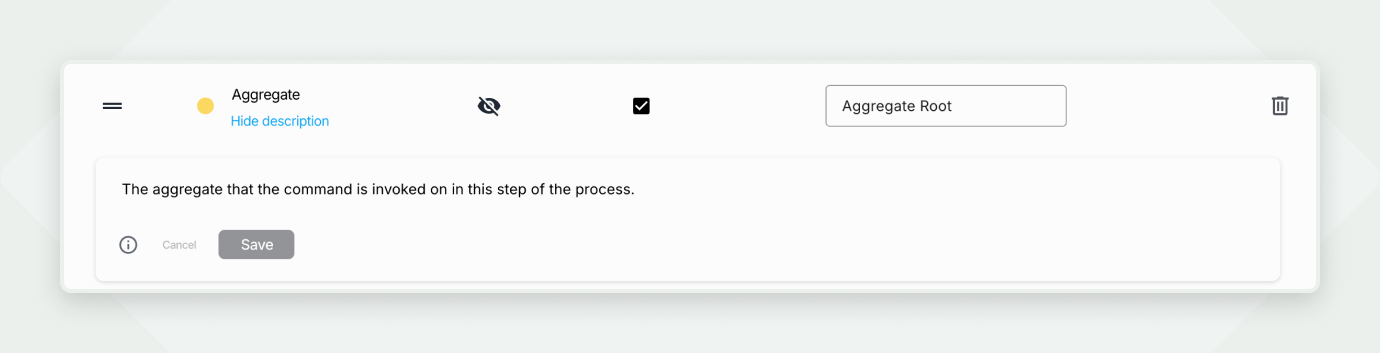
Finally, review the description of each card type by clicking Show description, and update it if needed. The descriptions are used in AI prompts. Then close the settings to return to the workflow diagram.
Several LLMs (large language models) are available. This example uses Claude Sonnet 5. You can choose the model in the workflow settings, under the AI tab.
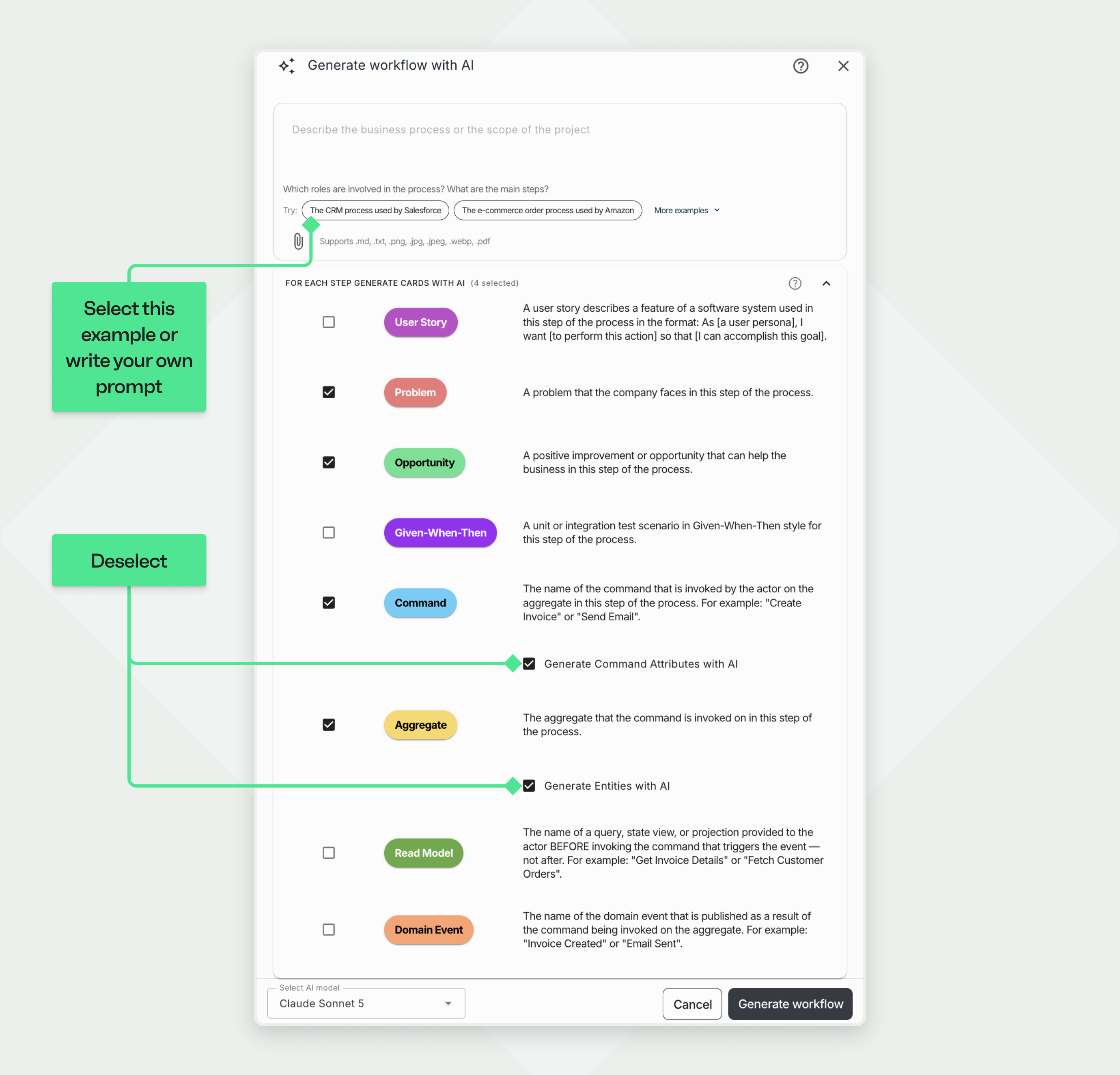
On the blank canvas, click Generate workflow with AI (the button is hidden once the workflow contains events). Below the prompt box, click the example "The CRM process used by Salesforce". You can edit the prompt to add detail:
Next, clear the Generate Command Attributes with AI and Generate Entities with AI checkboxes. These are used for Event Modeling and Domain-Driven Design. Then click Generate workflow.
The result may look similar to the example below, though output varies considerably between runs.
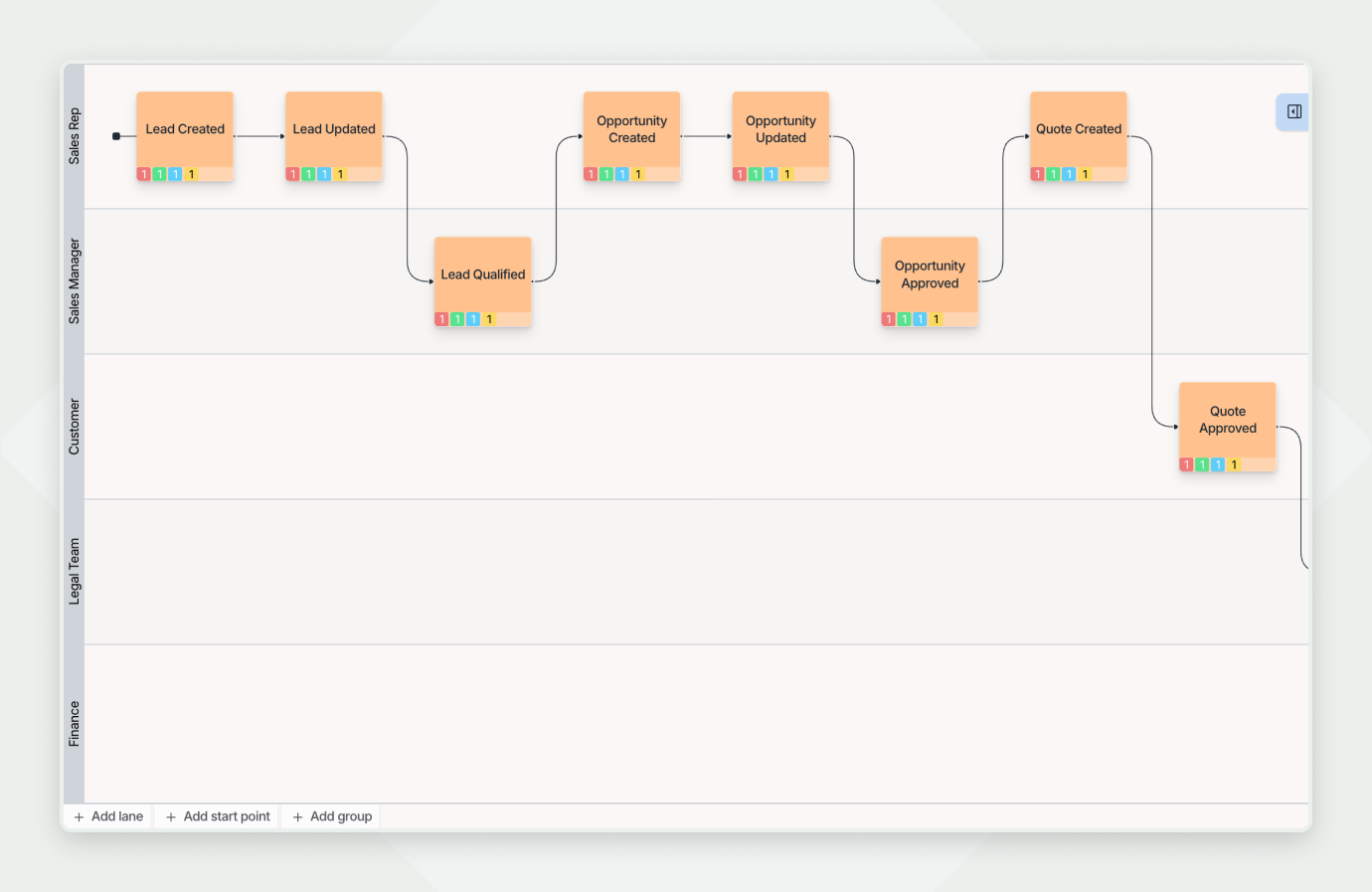
Go through the workflow step by step with your team and confirm that each step is correct. Invite team members to the project to co-edit in real time. Sometimes it works better if one person operates the tool while the others contribute verbally, depending on the situation and your facilitation style.
Start with the first event, "Lead Created", and follow these steps:
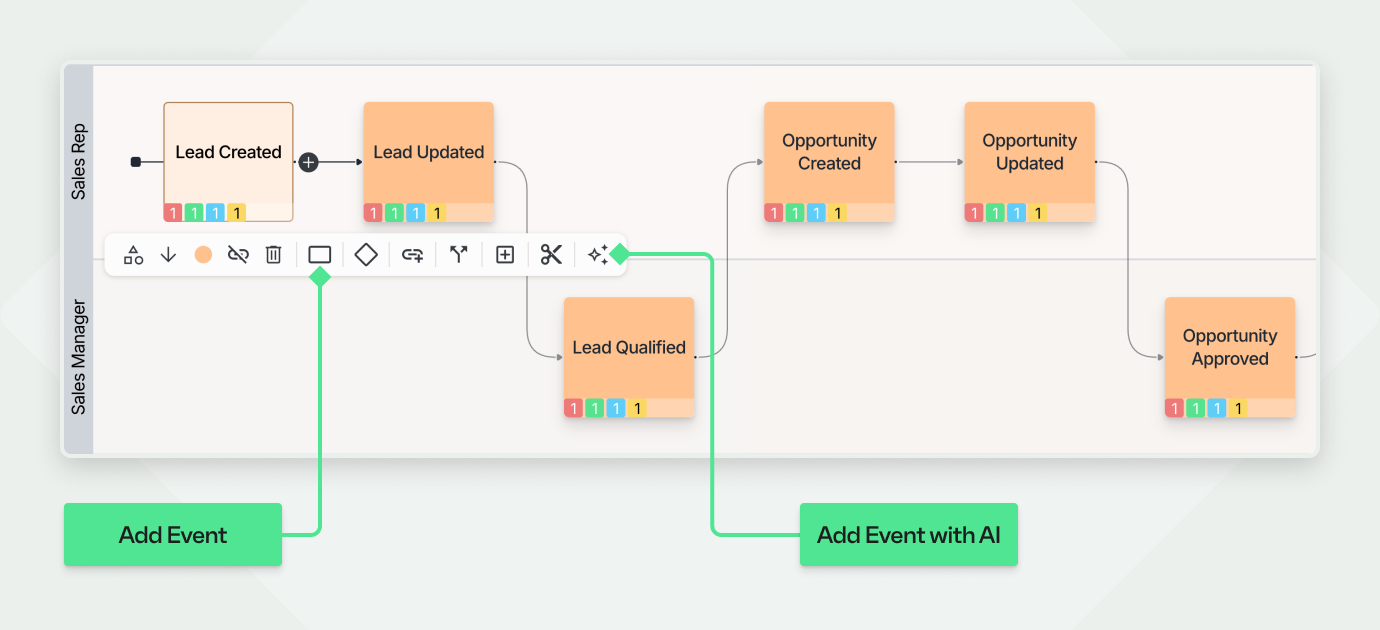
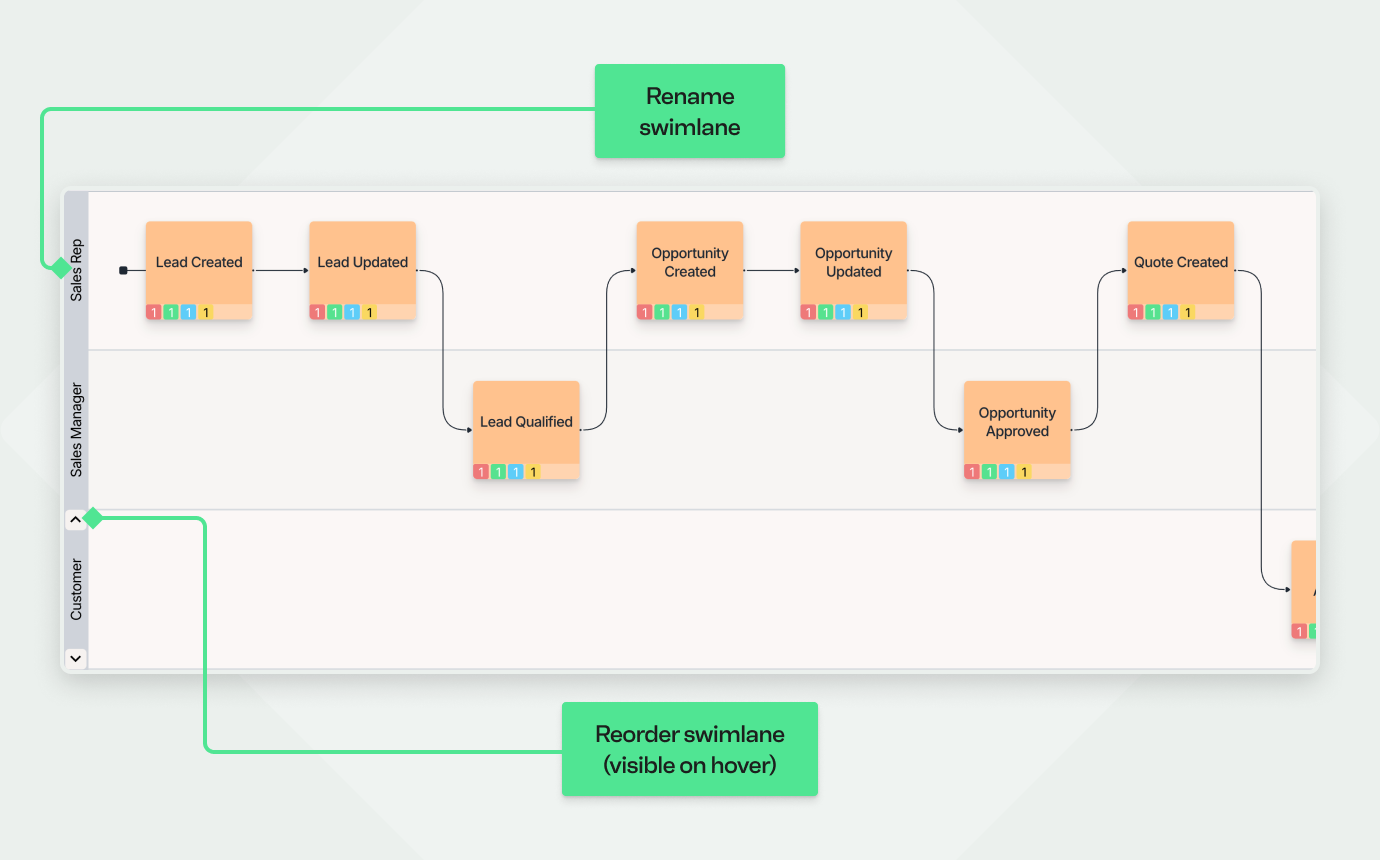
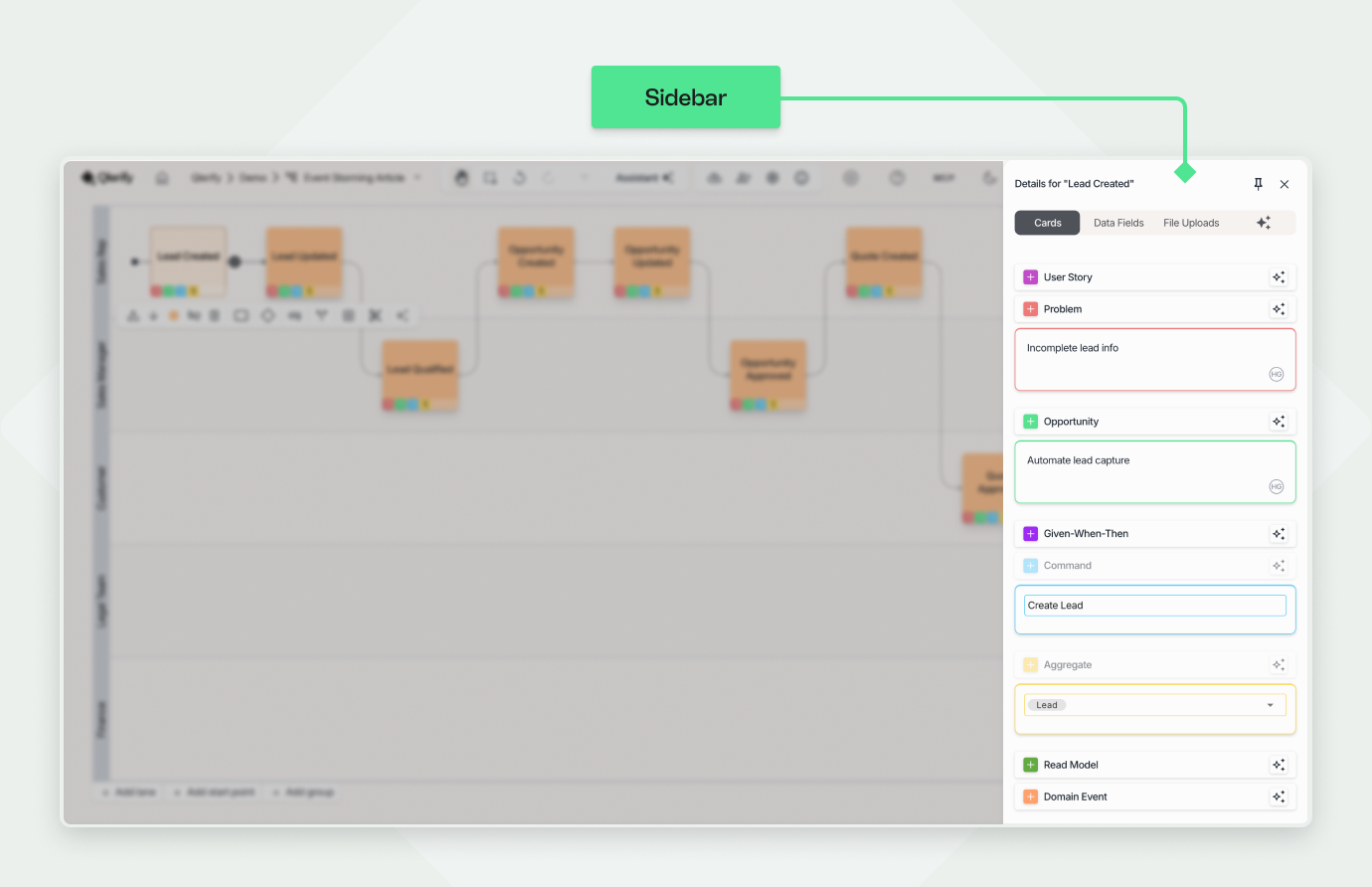
Note: When you edit the aggregate, a combo box lets you generate entities. Skip that for now and enter the aggregate name as free text.
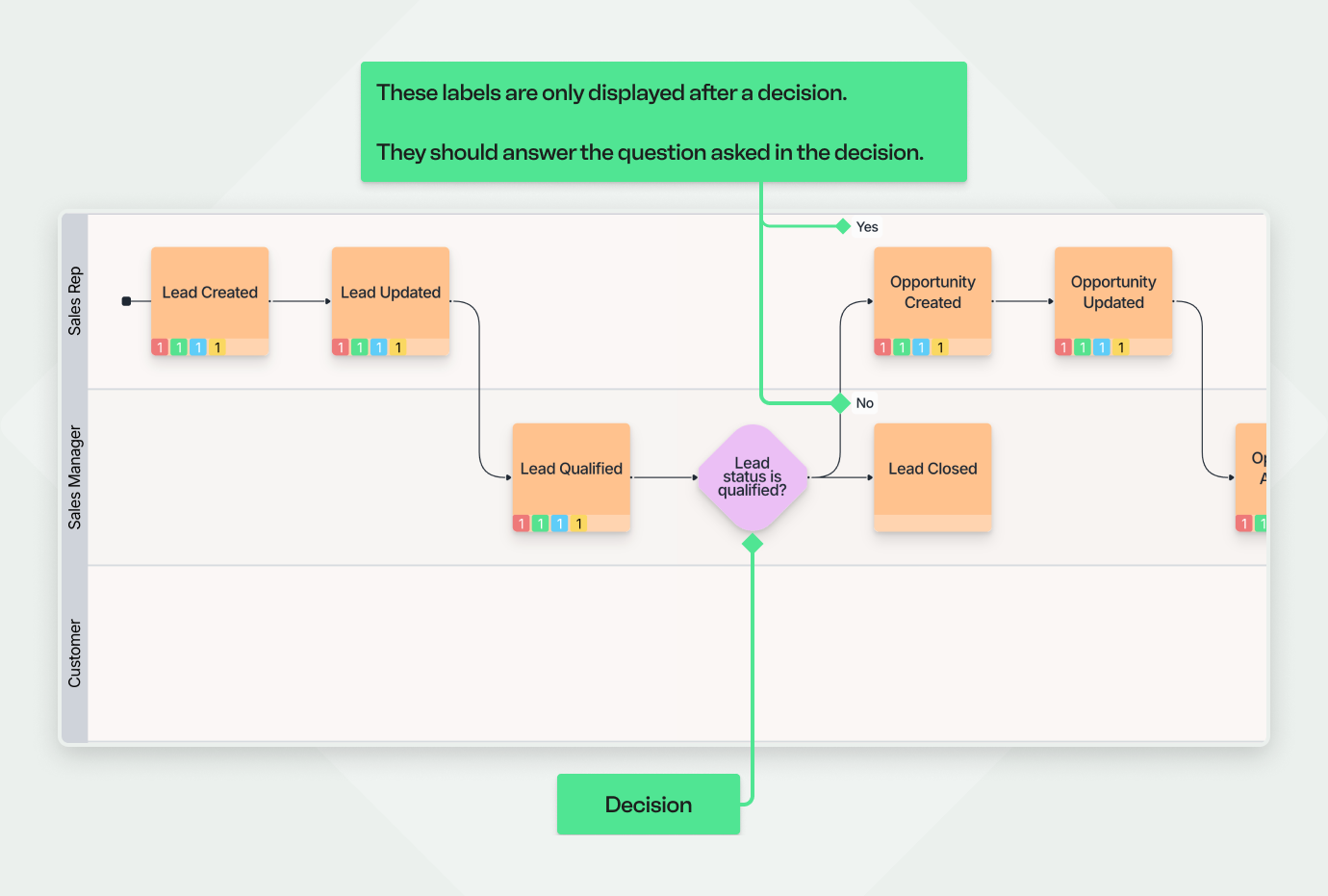
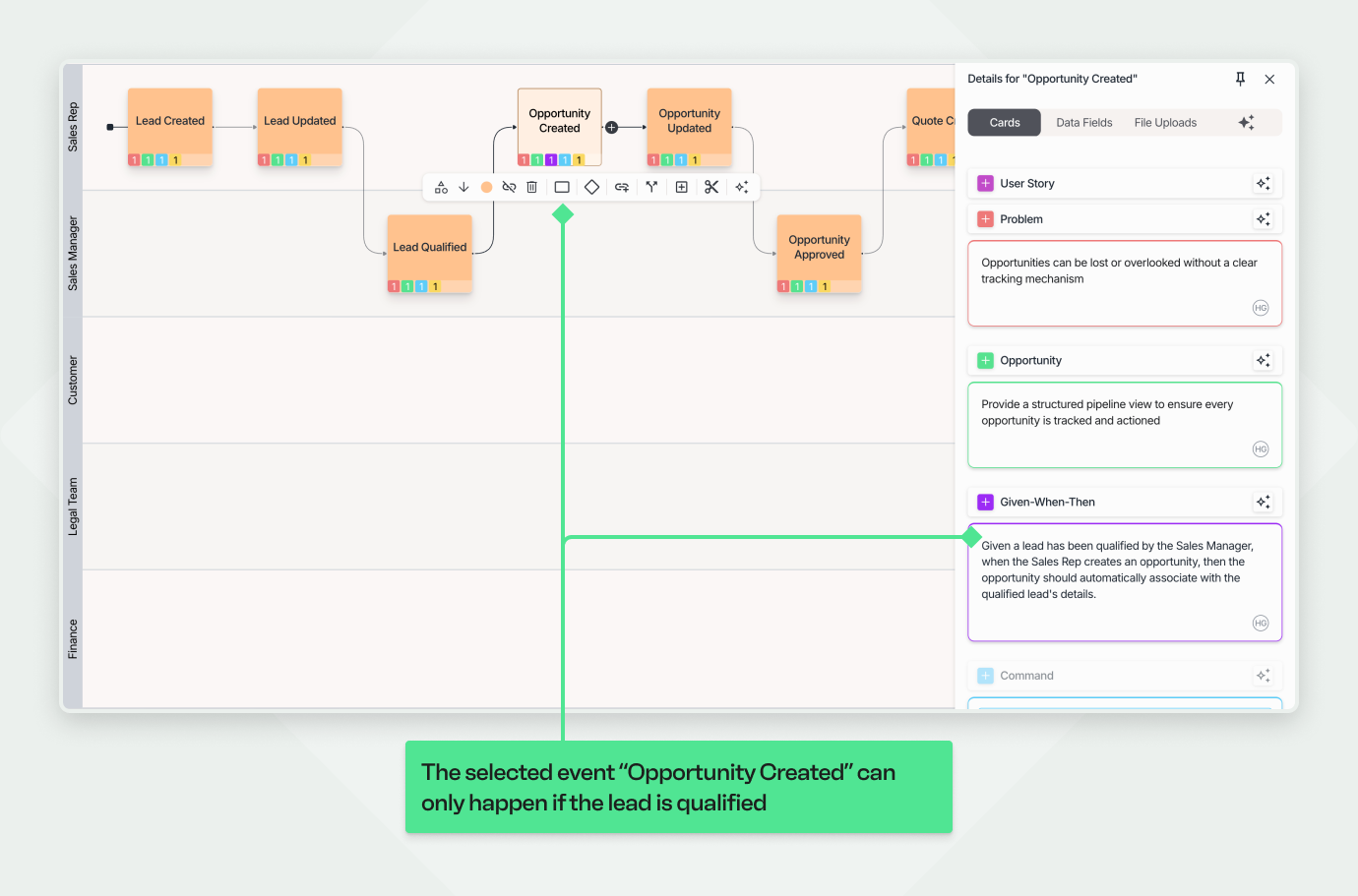
Repeat Step 4 for each event to refine the workflow. You do not need to finish in one session; you can return to the workflow later with different groups of people.
Things to keep in mind:
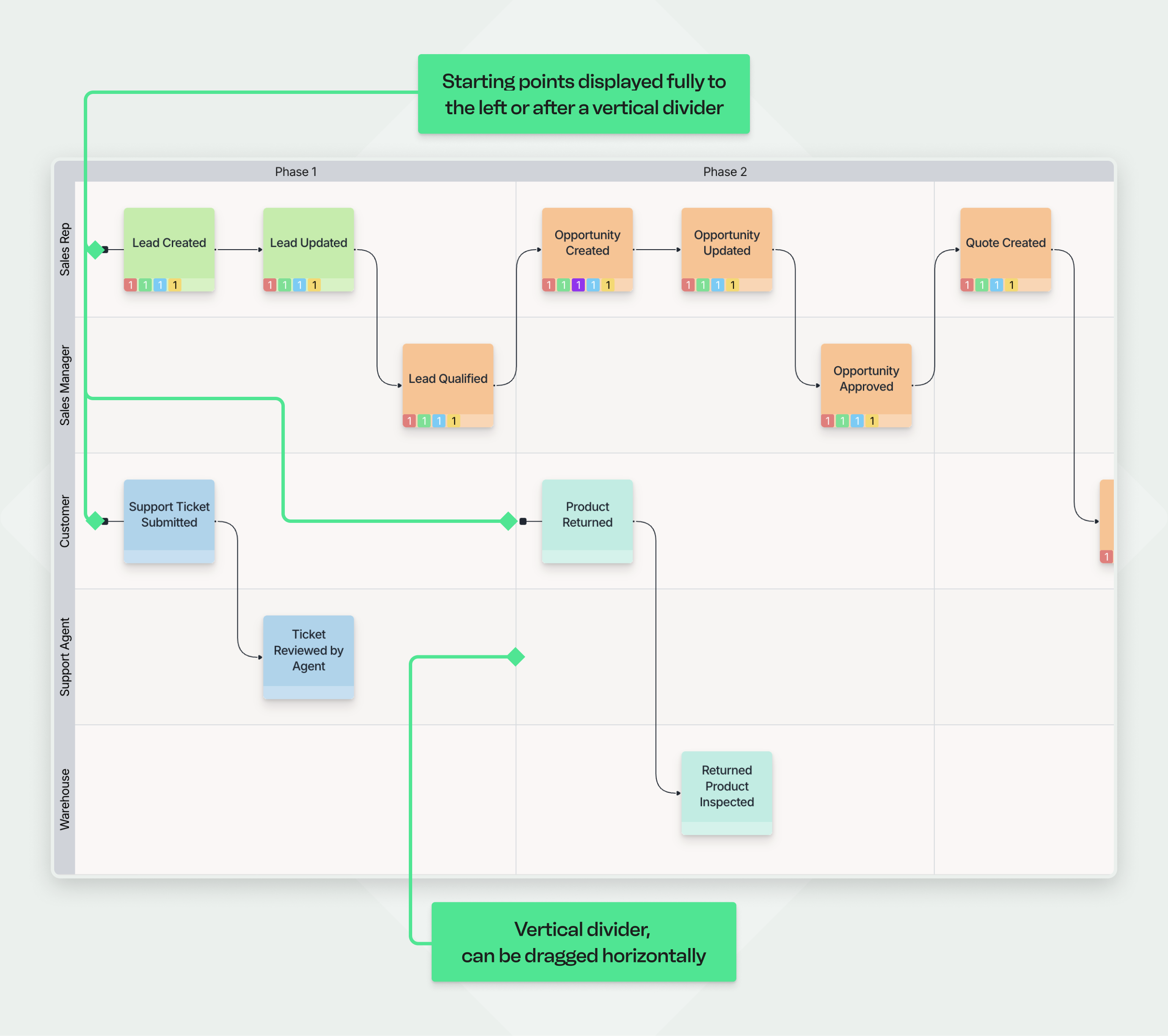
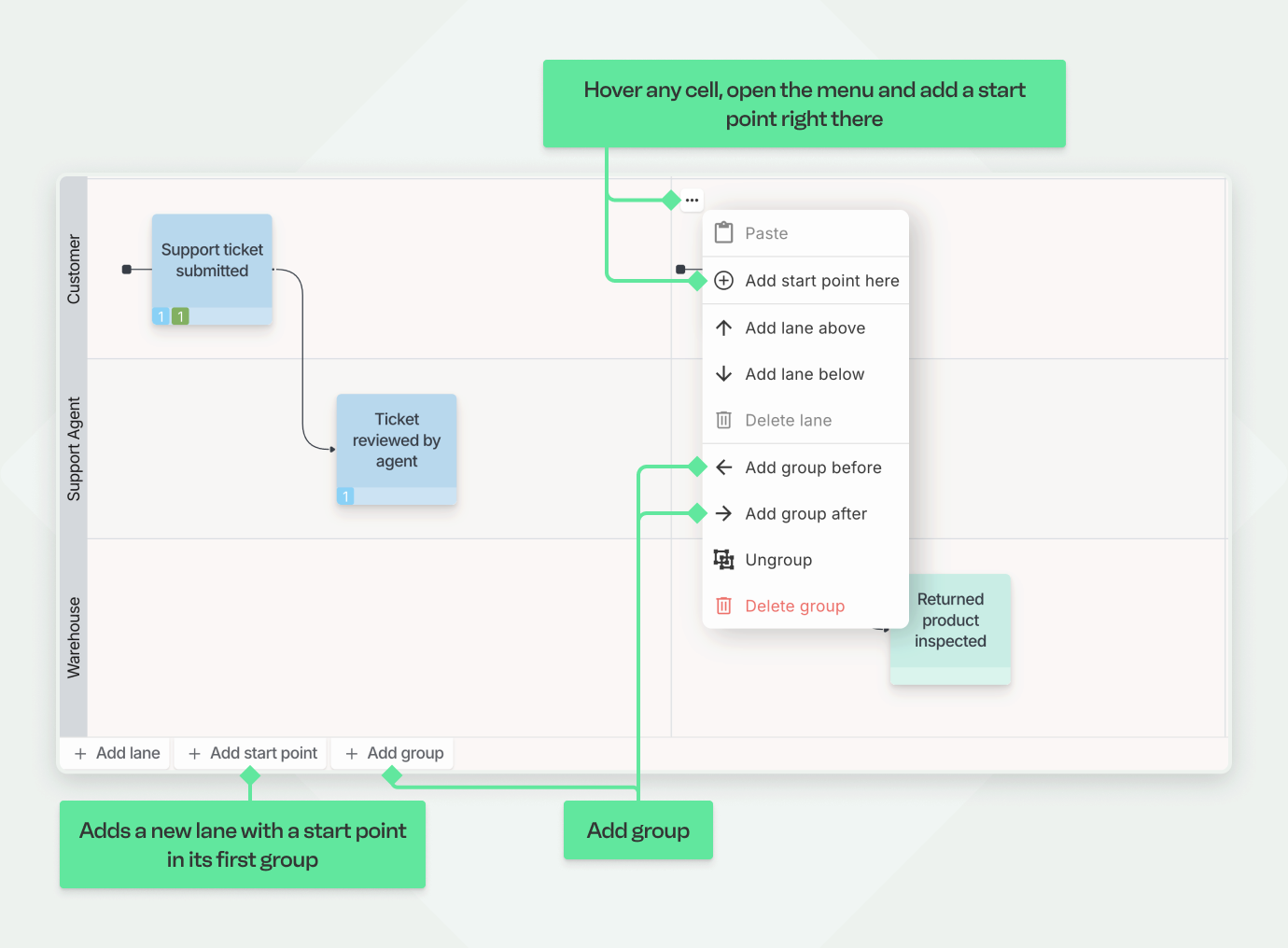
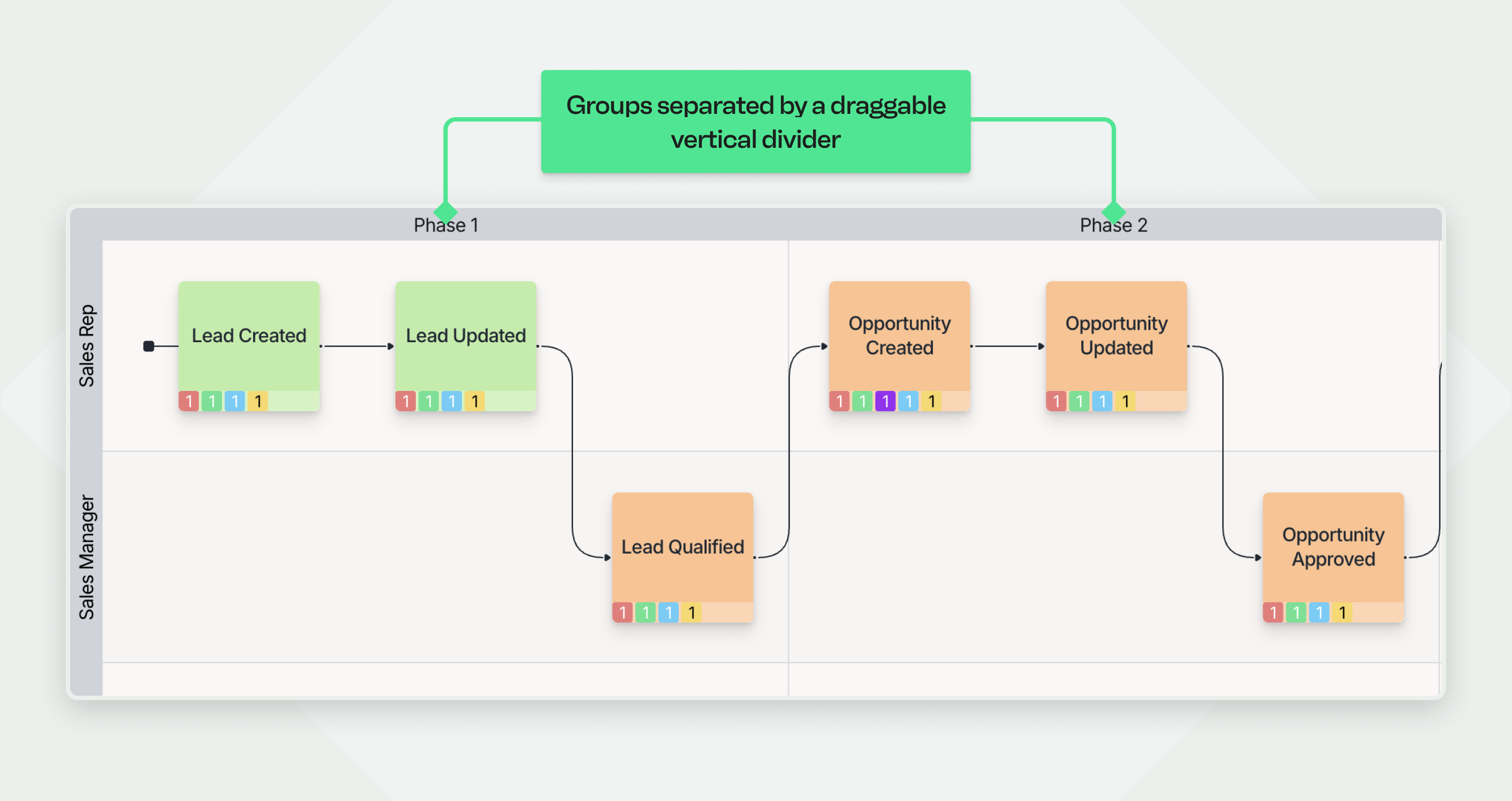
Qlerify also supports defining entities, read model attributes, and command attributes. For details, see our guides to Event Modeling and Domain-Driven Design.
Open the Domain Model tab below the workflow diagram to see commands and events grouped by aggregate.
The view may look like the image below. Each command (blue box) has its event to the right, at the same height. This gives you a summary of your aggregates and the commands available on each.
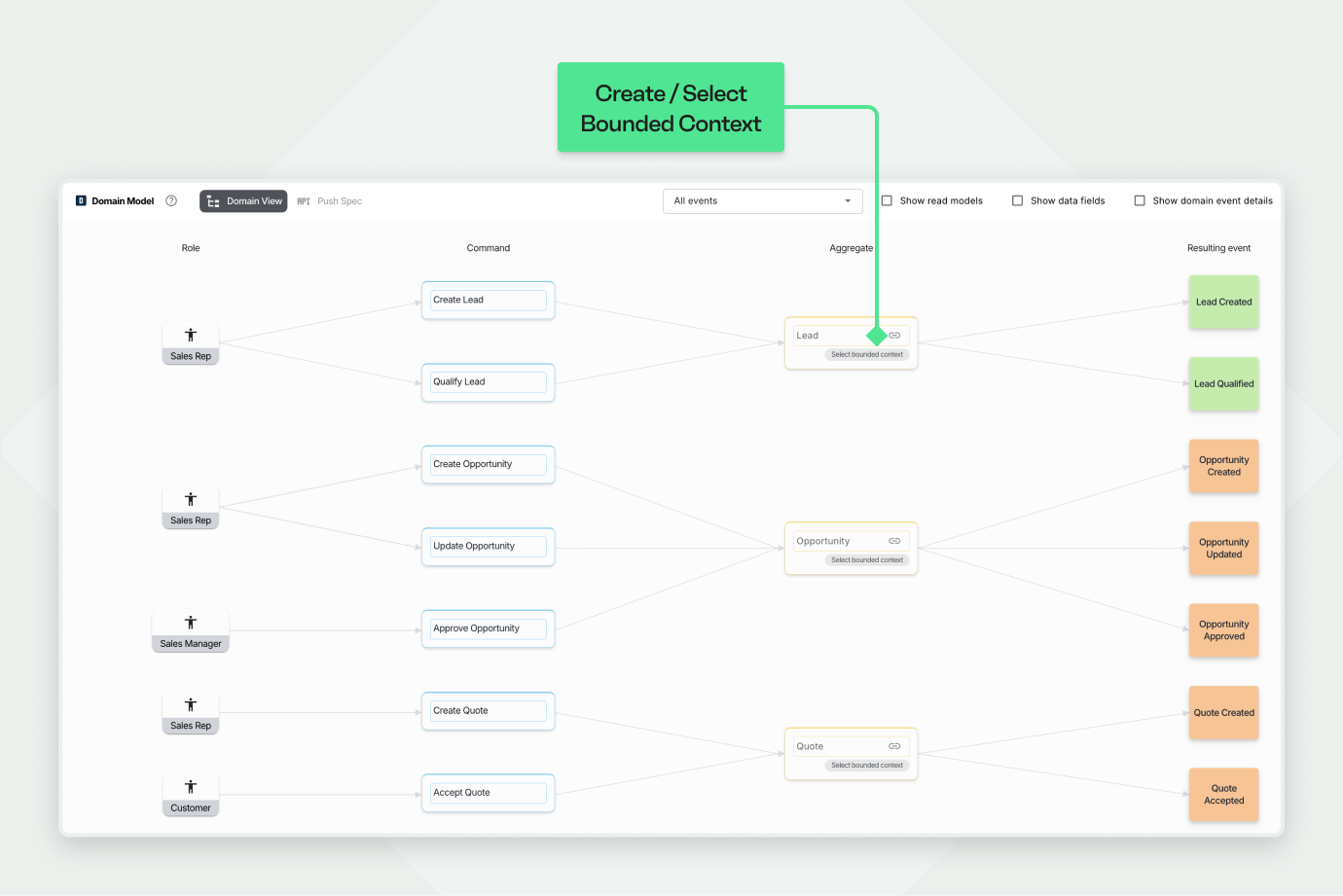
Next, assign a bounded context to each aggregate by clicking Select bounded context. After you create and select bounded contexts, for example Lead Management and CRM, the view may look like this:
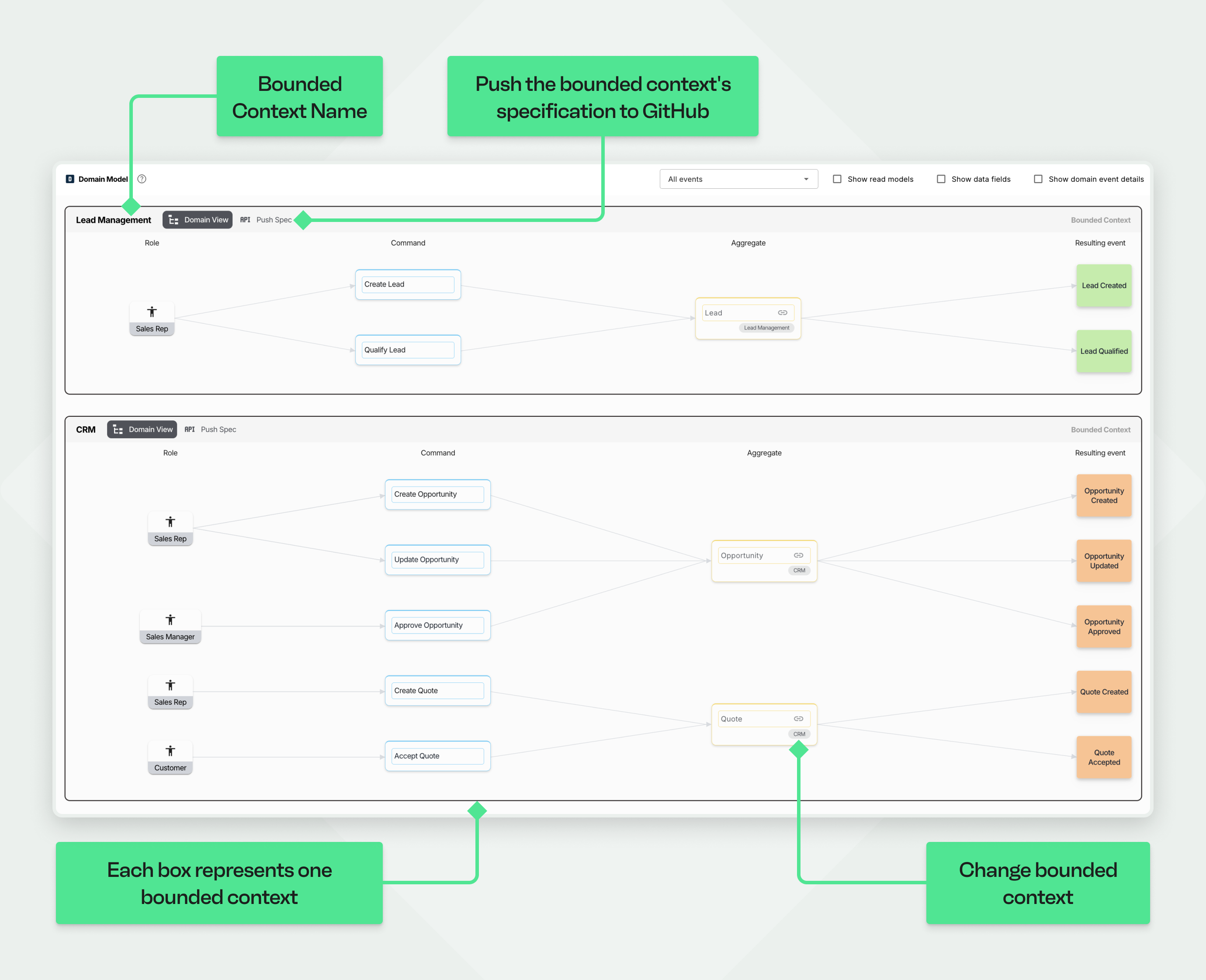
Each bounded context box has two tabs: Domain View and Push Spec. Use Push Spec to push the bounded context's domain model specification to a GitHub repository.
You have now captured the workflow and the foundation of its domain model.
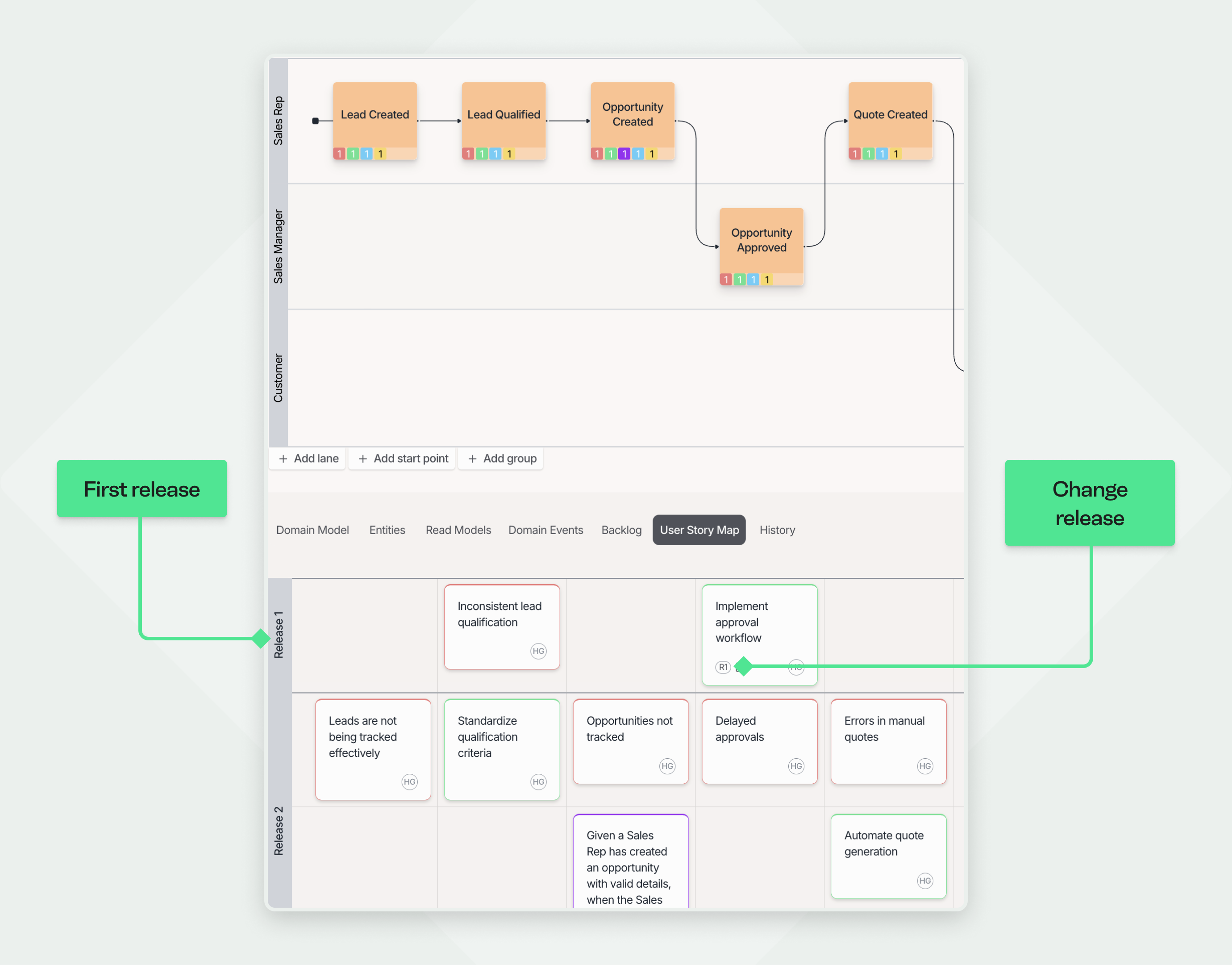
Finally, plan the problems, opportunities, and GWTs you identified into releases. Use the Backlog or the User Story Map tab below the workflow; this example uses the User Story Map:

We have extensive experience with Event Storming and built Qlerify as a cloud-based tool for the method. Sign up today.
We offer open and custom Event Storming courses in partnership with NFI. More information: Event Storming Course
We also facilitate on-site and remote Event Storming workshops.
Contact us via the form in the footer to discuss how Event Storming can help your organization.


